Always on top or picture-in-picture: which window do you need?
A floating video, a webpage companion and a pinned app solve different screen-space problems. Choose the content you need to keep visible.
Updated 2026-10-09
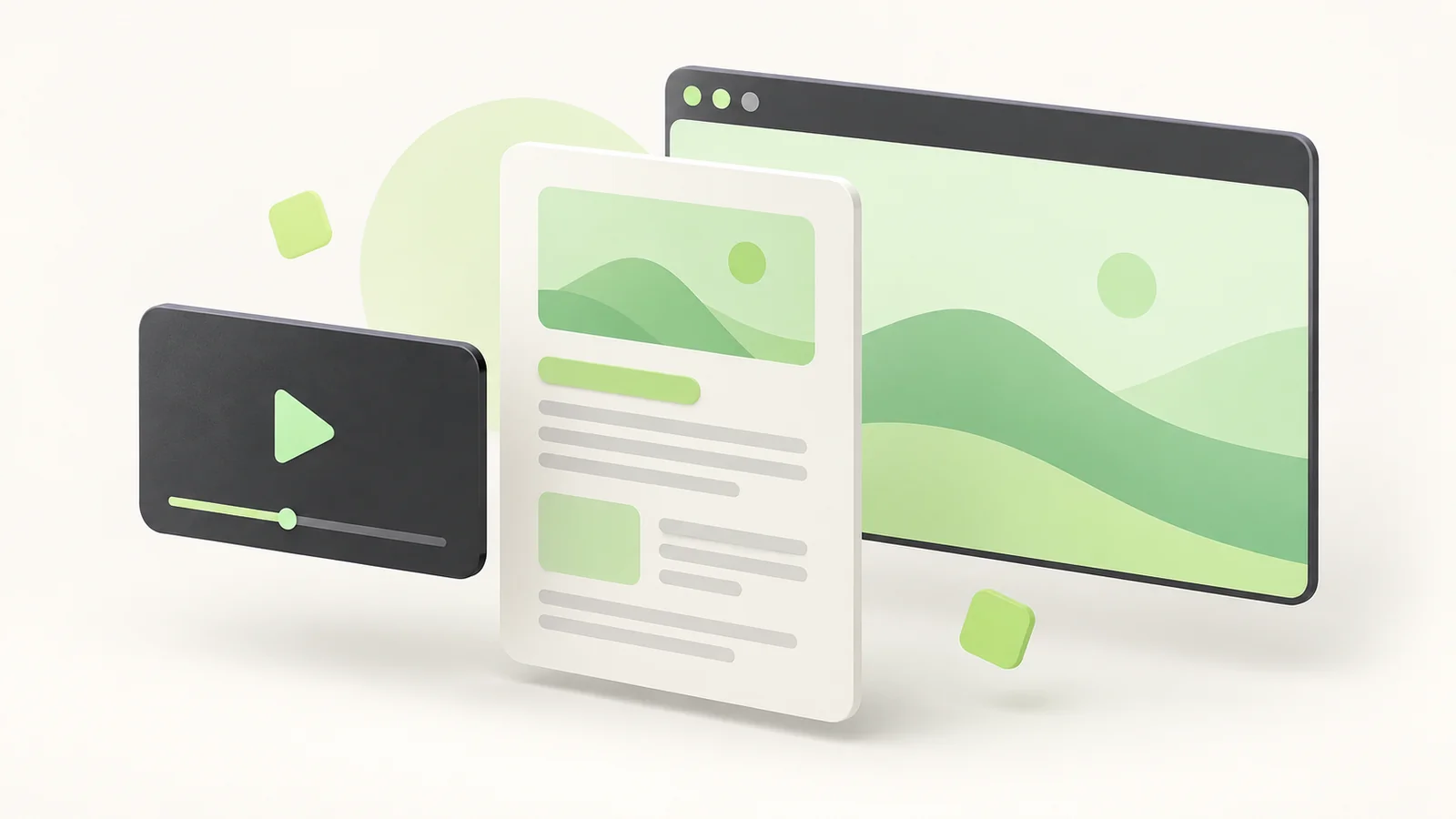
Use video picture-in-picture when you need the video to stay visible. Use a floating webpage view when you also need page content, such as instructions or a reference. If you want to pin an entire desktop application on Windows, use a window-management tool such as PowerToys.
The phrase "always on top" describes where a window stays, rather than one specific kind of content. Picture-in-picture can also create an always-on-top window.
Choose the content you need to see
Think about what you will look at while another application has focus. A lecture video, written instructions below that video and an entire browser window require different amounts of screen space.
Try the smallest view that still contains the information you need. If the video is sufficient, a separate webpage view may add unnecessary clutter. If you keep having to return to the page to read a step, the video alone may be too narrow a solution.
Keep enough content visible to follow your task, and leave room for the application where you are working.
Video picture-in-picture shows the video
The standard video Picture-in-Picture API moves a video element into a floating window. It is useful when you want to watch while working elsewhere. The surrounding webpage is a separate part of the experience.
Chrome also supports Document Picture-in-Picture, which lets websites build floating windows with HTML content and custom controls. Chrome's documentation explains both APIs. Some sites therefore provide more than a simple video player in their own PiP view.
Check the controls offered by the site you use. Do not assume that every player supports the same captions, buttons or floating layout.
A webpage companion keeps page content in view
Always on Top Window is an extension for web content in Chrome. Its Chrome Web Store description documents opening the current tab from the toolbar icon or opening a link through Open link in Always-on-top Window.
Move and resize the floating view to fit the content you need. Keep the source tab open: closing it also closes the companion window. The extension does not pin other desktop applications.
For a written reference, use the webpage companion guide. For a lesson, see keeping a video tutorial visible. Those guides cover using the selected view; this comparison helps you choose the kind of view first.
PowerToys pins a whole Windows window
Microsoft PowerToys Always On Top pins the active application window. Its default shortcut is Windows + Ctrl + T. Press the shortcut again to unpin it.
That is useful if you need the full browser window or another desktop app to remain above ordinary windows. PowerToys is a Windows utility, so this is a separate route from installing a Chrome extension.
Microsoft notes that a pinned window may not stay above other windows that also have the topmost property. Choose this route for window management rather than expecting a Chrome webpage extension to control desktop apps.
Check the view with your actual task
Open the content, switch to the application where you will work and inspect the result. Can you still read the text or see the video at the chosen size? Does the floating view cover controls you need in your main application?
Move it to another corner or resize it before deciding it is unsuitable. If you need a whole window, change the approach instead of stretching a small companion until it occupies most of the screen.
Keep the original tab available when using Always on Top Window, and test the particular site you intend to use. Its listing describes a webpage workflow; it does not establish compatibility with every website or player.